
Problem #
Your internet works some of the time but keeps dropping, slowing down or reconnecting. This guide covers the common causes you can check yourself, and what to send us so we can investigate the link.
1. Check physical connections #
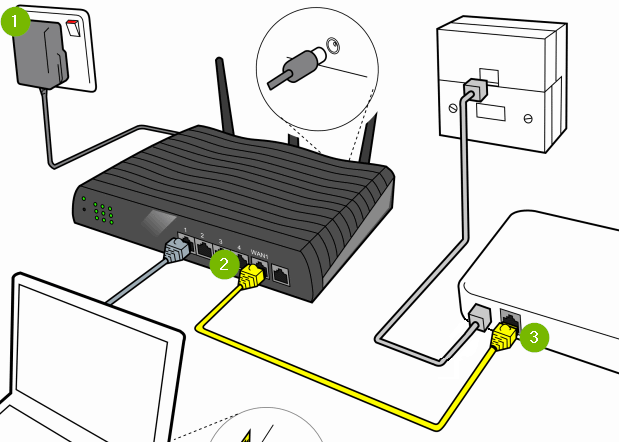
Make sure all cables (Ethernet, power, fiber) are firmly connected and undamaged. A loose cable is one of the most common causes of a link that keeps dropping. If you use Wi-Fi, move closer to the access point to rule out a weak signal.
2. Restart your equipment #
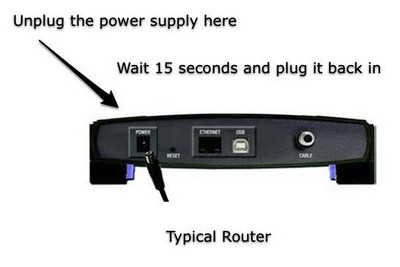
- Switch off the modem/ONT and the router.
- Wait 30 seconds to 1 minute.
- Switch on the modem/ONT first, wait 2–3 minutes, then switch on the router.
- Restart your computer or phone.
A power restart is safe on all equipment, including Cloudi-installed devices. Do not press the reset pinhole on any device.
3. Check speed and stability #
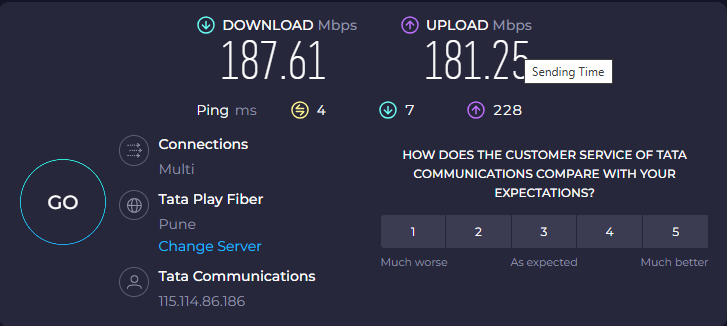
- Run a speed test a few times over 15–30 minutes. See How to Run an Accurate Speed Test.
- Test over a wired (Ethernet) connection. If wired is stable but Wi-Fi is not, the problem is the Wi-Fi.
- If several devices are affected on both wired and Wi-Fi, the problem is more likely the router or the Cloudi link.
A continuous ping is the best way to catch drops. On Windows run ping 8.8.8.8 -t
and leave it running for 10–15 minutes; on Mac/Linux run ping 8.8.8.8.
Press Ctrl + C to stop and take a screenshot of the summary.
4. Refresh DNS and IP on your computer (Windows) #
- Run them only on your own computer, not on servers or network devices.
ipconfig /releasedisconnects the computer. If you are connected remotely (Remote Desktop, AnyDesk, VPN), you will lose the session.- If the computer uses a fixed (static) IP address, run only
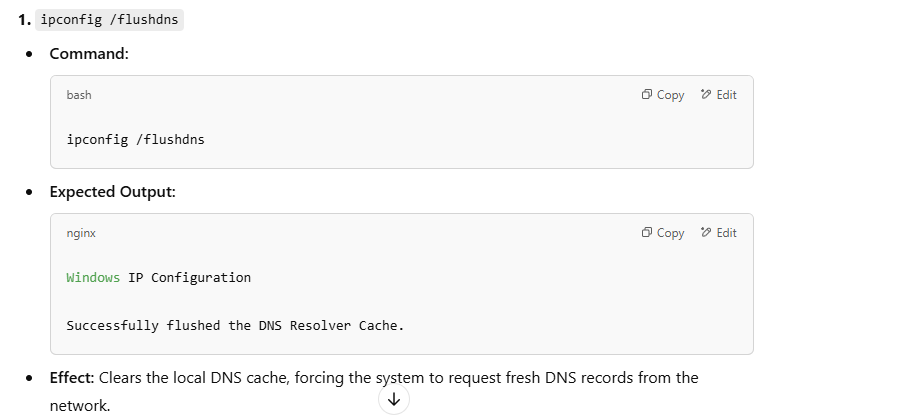
ipconfig /flushdns.
Open Command Prompt (press Windows + R, type cmd, press Enter) and run these one by one:
ipconfig /flushdns
ipconfig /release
ipconfig /renew
Then check whether the problem continues.
5. Check for heavy network use #
Large downloads, backups or updates can make speed rise and fall. Pause them while you test.
6. Run a traceroute #
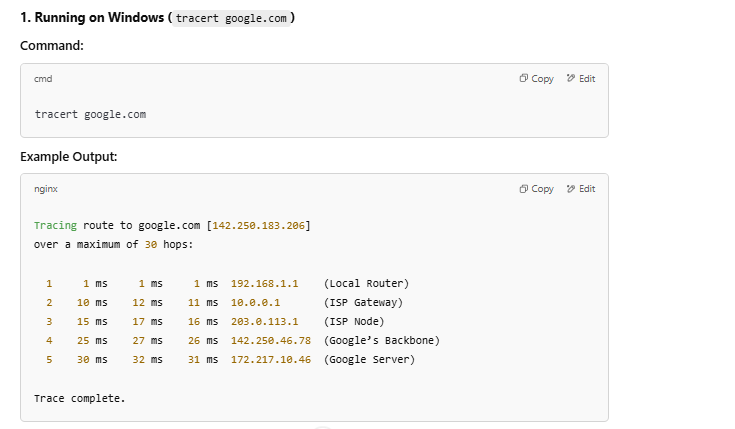
Run tracert -d 8.8.8.8 (Windows) or traceroute -n 8.8.8.8 (Mac/Linux) and take a screenshot.
A * * * or one slow middle hop is usually normal. High times that start at one hop
and continue on every hop after it can point to a problem — send us the output and we will check it.
7. Other checks #
- Malware and background updates: run a scan and check for updates downloading in the background.
- Changing DNS servers: if your IT team manages DNS for your office, check with them first. Switching a computer to a public DNS server such as 8.8.8.8 can stop it reaching internal systems, file shares or Active Directory.
8. Raise a request with Cloudi #
If the link is still unstable, submit a request or email corp.helpdesk@cloudi-infra.com. Include:
- Your Circuit ID and site address
- When the drops happen (times of day, how often, how long they last)
- Screenshots of your continuous ping summary, speed tests and traceroute
- Whether wired, Wi-Fi or both are affected
Still need help? #
WhatsApp Cloudi Support 24×7 on +91 927 24 24 24 7, or submit a request from a phone using mobile data. You can also reach your Service Account Manager (SAM).