
What a traceroute does #
A traceroute lists every network hop between your computer and a destination, with the time each hop takes to respond. It helps show whether a problem is inside your office, on the Cloudi network, or further out on the internet. Our support team often asks for this result.
1. Open Command Prompt (Windows) #
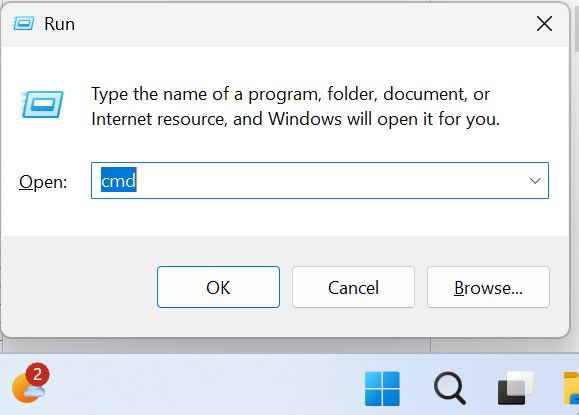
- Press Windows + R on your keyboard. The Run box opens.
- Type
cmdand press Enter.
On Mac, open Terminal (Applications > Utilities). On Linux, open a terminal window.
2. Run the traceroute #
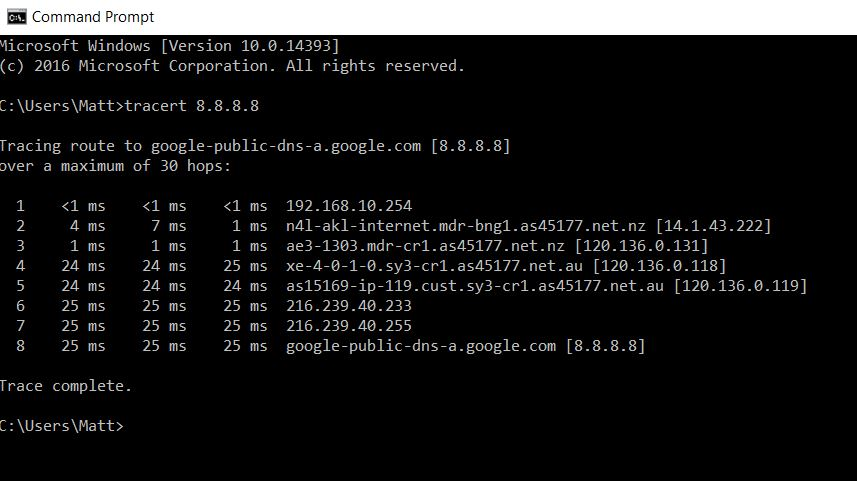
- Windows:
tracert -d 8.8.8.8 - Mac / Linux:
traceroute -n 8.8.8.8
Press Enter and wait until it finishes (up to 30 hops). The -d / -n option skips name lookups so it runs faster.
3. Read the output #
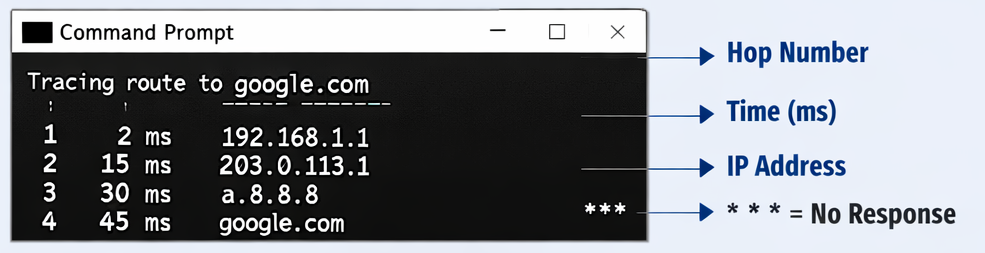
- Each line is one hop, numbered 1, 2, 3 and so on.
- Each line shows three response times in milliseconds (ms), followed by the hop’s IP address.
- Hop 1 is usually your own router. The next few hops are usually the Cloudi network.
- The last line should show the destination you tested — here,
8.8.8.8.
* * * (no response) or one high time at a middle hop is usually not a fault.
Many routers are set to ignore or deprioritise these tests while still passing your traffic normally.
What may be a problem:
- Times jump at one hop and stay high on every hop after it.
- The output stops at the same hop every time and never reaches the destination.
4. Send the result to us #
You do not need to interpret the result yourself. Take a screenshot of the full output, or copy and paste the text, and attach it to your request along with your Circuit ID. Our team will check whether the issue is on the Cloudi network or beyond it.