
Problem #
Your connection works, but everything feels delayed: video calls stutter, pages hang before loading, or applications respond slowly. This guide helps you find out whether the delay comes from your device, your office network or the Cloudi link, and what to send us if you need help.
1. Describe the problem #
Before you start, note down:
- What is slow: websites, video calls, a specific application, or everything
- When it started, and whether it happens at particular times of day
- Whether one device or many devices in your office are affected
These details help us find the cause faster if you raise a request.
2. Check speed and ping #
Run a speed test #
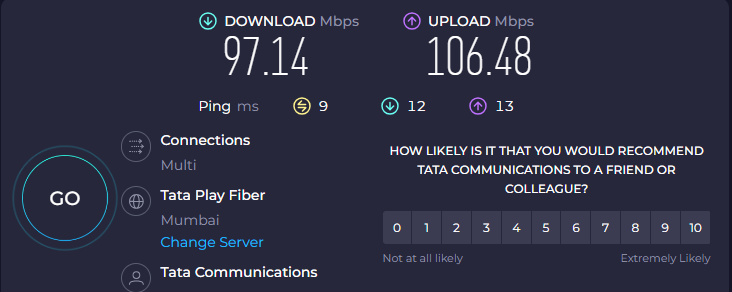
Run a speed test and compare the result with your subscribed bandwidth. For accurate results, follow How to Run an Accurate Speed Test — a test over Wi-Fi will not show your real link speed.
Run a ping test #
Windows — open Command Prompt and run:
ping 8.8.8.8 -tLet it run for about a minute, then press Ctrl + C to stop and see the summary.
Mac / Linux — open Terminal and run:
ping -c 60 8.8.8.8This sends 60 pings (about a minute) and then shows the summary.
What to look for: response times regularly above 100 ms, large jumps between replies, or any Request timed out / packet loss in the summary.
3. Check what is using your bandwidth #
A large download, cloud backup or update can fill the link and cause delay for everyone.
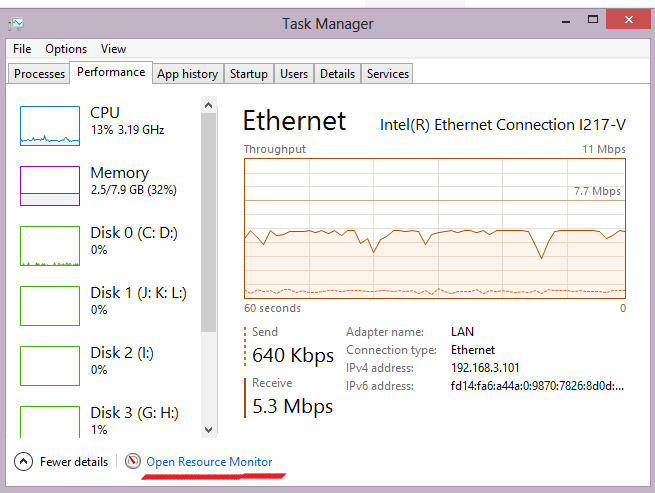
- Windows: open Task Manager (Ctrl + Shift + Esc) > Performance > Ethernet or Wi-Fi.
- Mac: open Activity Monitor > Network.
Look for downloads, updates, backups or video streaming using a lot of bandwidth, and pause them if they are not needed.
Check your own router or firewall #
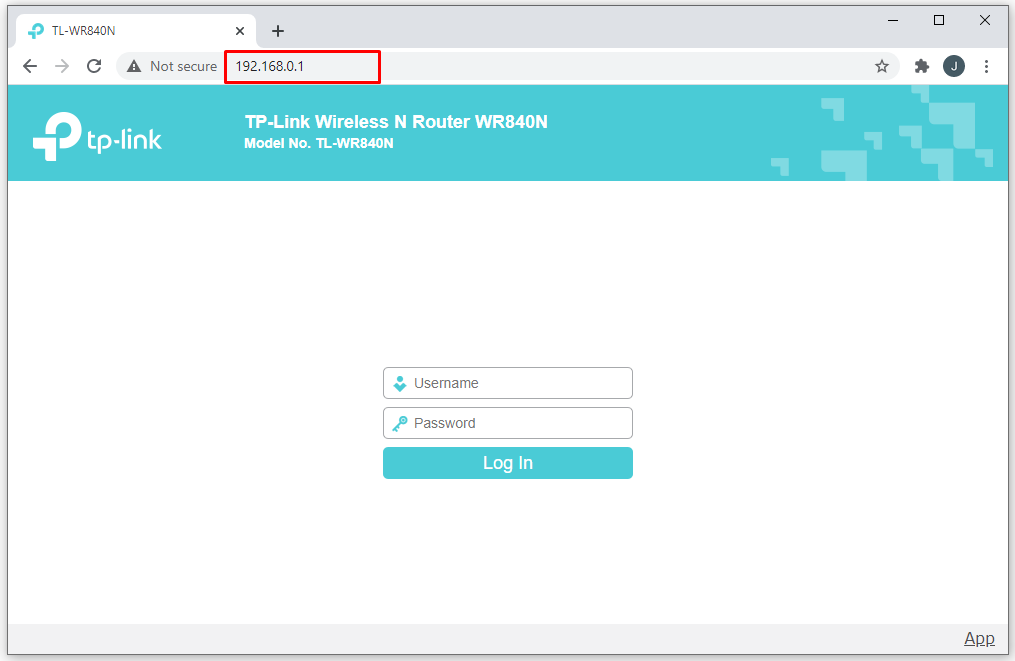
Your IT administrator can sign in to your own router or firewall and check its traffic or bandwidth report for devices or users using an unusually large share of the link.
4. Run a traceroute #
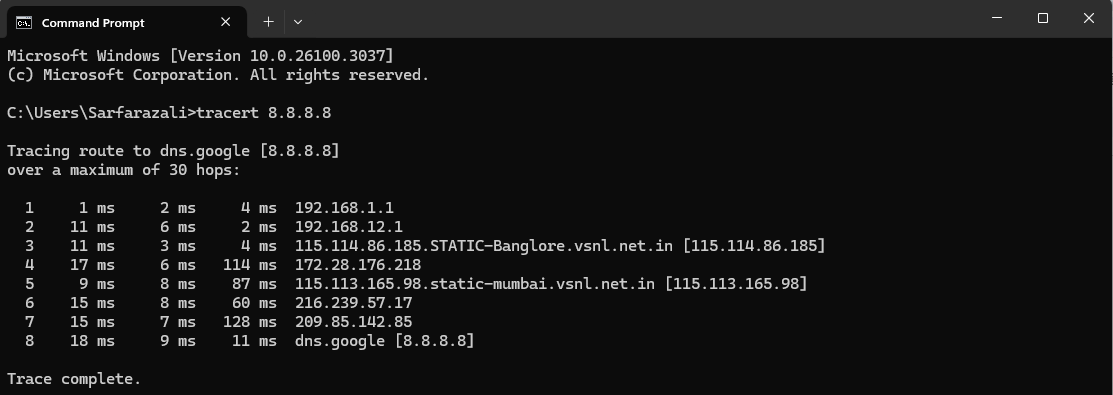
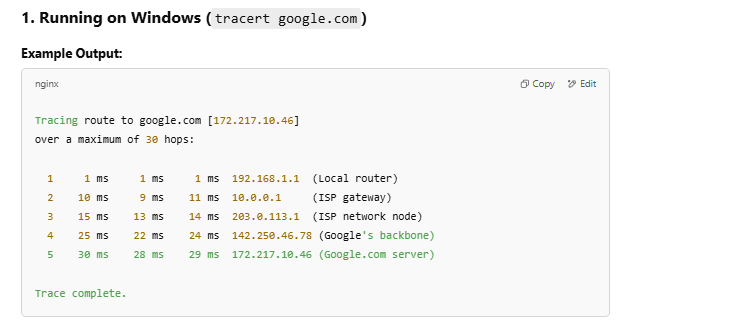
A traceroute shows each network hop between your device and the destination, and the delay at each one.
- Windows:
tracert -d 8.8.8.8 - Mac / Linux:
traceroute -n 8.8.8.8
* * * or a high time at a single middle hop is usually normal — many routers give
these tests low priority. A real problem shows as high times that start at one hop and
continue on every hop after it. Send us the full output and we will interpret it.
5. Restart and compare #
- Restart the modem/ONT and router: switch them off, wait 30 seconds, switch on the modem/ONT first, then the router after 2–3 minutes. A power restart is safe on all equipment; do not press any reset pinhole.
- Reconnect your device to the Wi-Fi or LAN.
- If you can, test from another device, or from a mobile hotspot, to see whether the delay follows the device or the connection.

6. Check cables and Wi-Fi #
Wired connection #
- Check the Ethernet cable for kinks, cuts or loose connectors.
- If it looks fine, plug it into a different port on the switch or router.

Wi-Fi #
- Move closer to the access point.
- Keep away from sources of interference such as microwaves.
- Connect to the 5 GHz network instead of 2.4 GHz, if available.
7. Update your computer’s network driver #
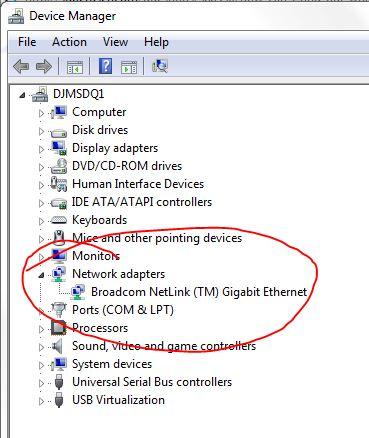
On Windows, open Device Manager > Network adapters, right-click your adapter and choose Update driver. Your IT team may manage this for you.
8. Raise a request with Cloudi #
If the delay continues, submit a request or email corp.helpdesk@cloudi-infra.com. Include:
- Your Circuit ID and site address
- What is slow and when it started
- Screenshots of your speed test, ping and traceroute results
- Whether one device or many are affected
We will check the link for congestion, errors or routing issues on our side.
Still need help? #
WhatsApp Cloudi Support 24×7 on +91 927 24 24 24 7, or submit a request from a phone using mobile data. You can also reach your Service Account Manager (SAM).