
Problem #
Websites take a long time to load. This guide helps you find out whether the cause is the connection, other traffic on your network, your browser, or your computer itself.
1. Narrow down the problem #
- Is it every website, or only some? If only one site is slow, the problem is usually that site.
- Are colleagues on the same network also affected? If only you are, the problem is likely your device.
2. Check the connection #
Run a speed test and compare it with your subscribed bandwidth. See How to Run an Accurate Speed Test for how to get a reliable result.

Then open Command Prompt (Windows) or Terminal (Mac/Linux) and run these tests:
| Test | Windows | Mac / Linux |
|---|---|---|
| Reach the internet | ping 8.8.8.8 | ping -c 10 8.8.8.8 |
| Check name lookup (DNS) | ping google.com | ping -c 10 google.com |
| See the network path | tracert -d 8.8.8.8 | traceroute -n 8.8.8.8 |
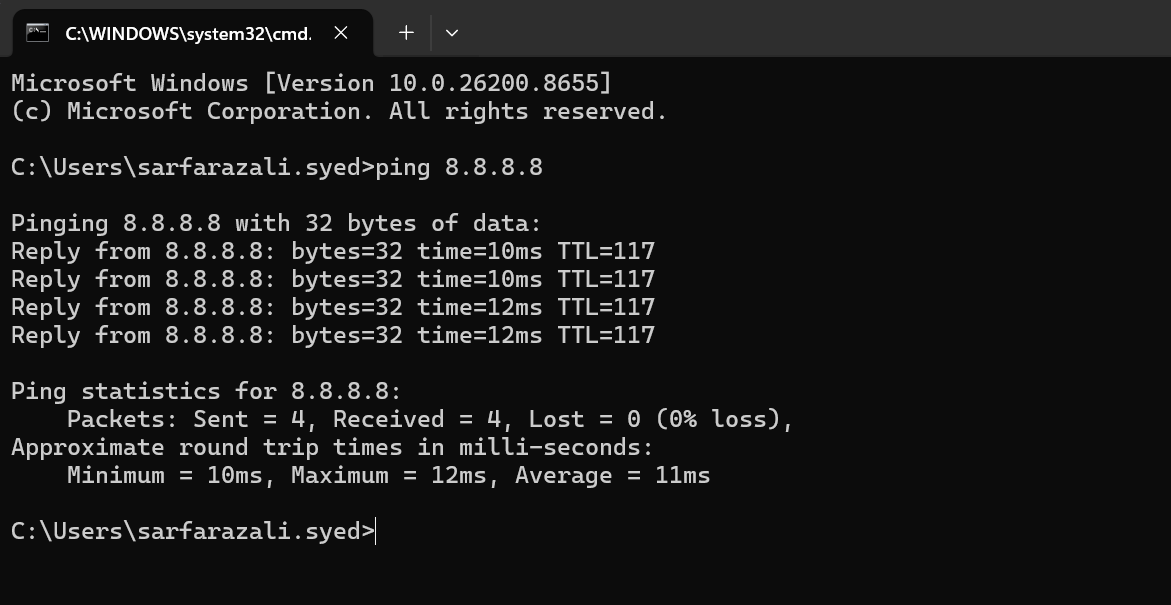
Look for:
- Ping times regularly above 100 ms
- Any Request timed out or packet loss
- In the traceroute, high times that start at one hop and continue on every hop after it. A single
* * *or slow middle hop on its own is usually normal.
If these tests show a problem, follow Latency Troubleshooting. If they look fine, continue below.
3. Check for heavy network use #
Large downloads, cloud backups, file sync or software updates can slow browsing for everyone on the network. Pause them if they are not needed.
4. Check your browser #
- Close tabs you are not using.
- Clear the browser cache and cookies.
- Turn off browser extensions you do not need.
- Update the browser to the latest version.
- Try a different browser. If the other browser is fast, the problem is the first browser.
5. Check your computer’s resources #
A busy computer can feel like a slow internet connection. On Windows, open Task Manager with Ctrl + Shift + Esc and select the Processes tab.
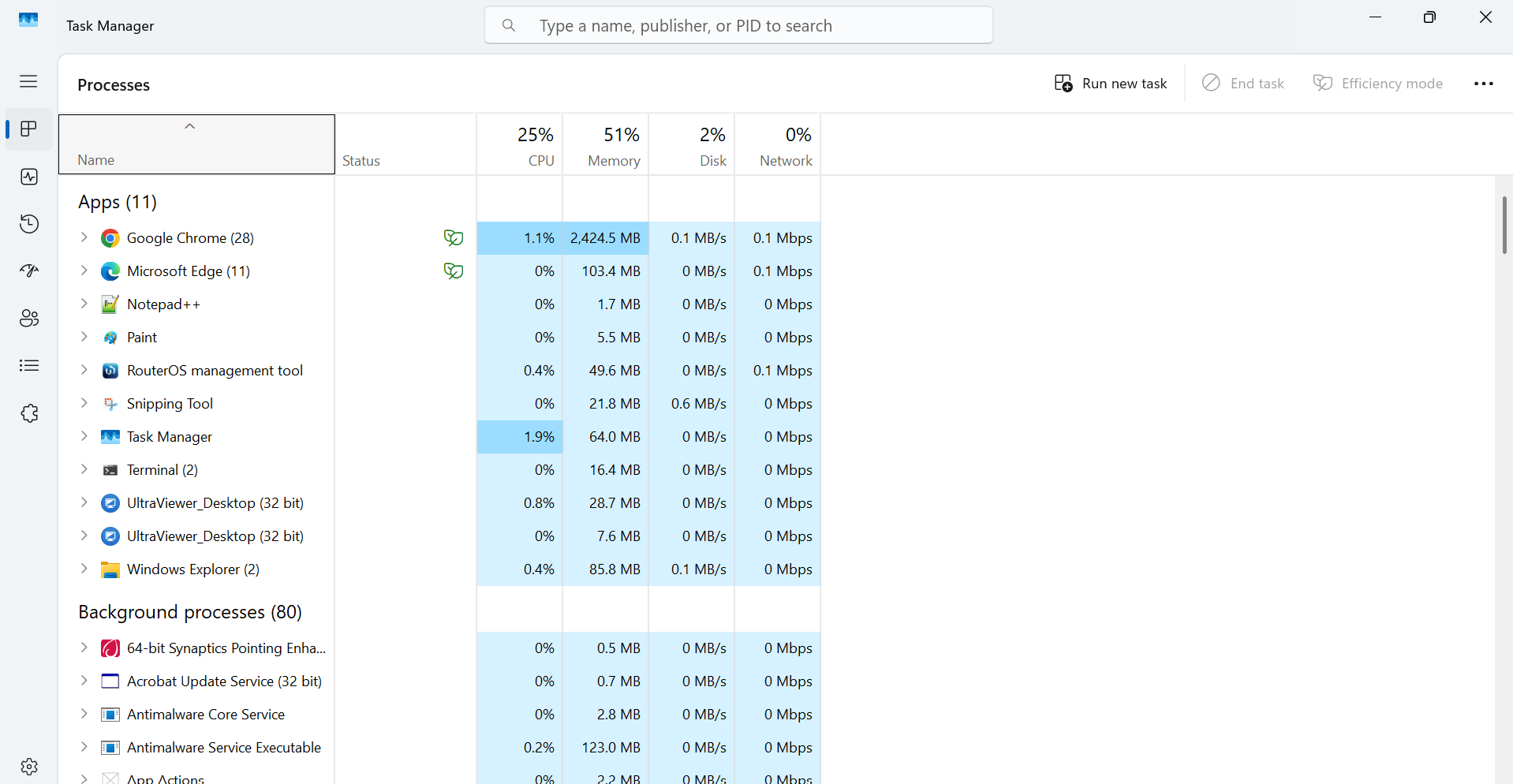
Click a column header (CPU, Memory, Disk, Network) to sort from highest to lowest, then compare with these ranges:
| Resource | Normal | Moderate | High |
|---|---|---|---|
| CPU | 0–30% | 30–80% | Above 80% |
| Memory | Below 70% | 70–85% | Above 85% |
| Disk | Below 50% | 50–80% | Above 80% |
If CPU or memory is high #
- Find the application using the most and close it if you do not need it.
- Close unused browser tabs.
- Use End task only for applications you recognise and have saved your work in.
If disk is high #
Common causes are Windows Update, antivirus scans, backup software and file sync tools. Wait for them to finish, or pause them.
If network use is high #
Sort by the Network column. Applications such as OneDrive, Windows Update, Teams, Zoom or cloud backup software can use a lot of bandwidth. Pause or close them if they are not needed.
6. Test another device #
Connect another device to the same network and open the same websites. If the other device is fast, the problem is the first device, not the connection.
7. Raise a request with Cloudi #
If browsing is slow on all devices and the tests in Step 2 show high times or packet loss, submit a request with your Circuit ID and screenshots of your speed test, ping and traceroute results.