
Problem #
Websites and email systems judge every connection by its public IP address — the address your whole office appears from on the internet. If that IP is on a blocklist (sometimes called a blacklist or RBL), has a poor reputation, or appears to be in the wrong location, some services will refuse or challenge your traffic even though your internet link is working normally. Getting the IP removed or allowed is called delisting or whitelisting.
1. Match your symptom #
| What you see | Likely cause | Go to |
|---|---|---|
| Emails bounce or go to spam; the bounce message names a blocklist | IP is on an email blocklist | Steps 2, 3 and 4A |
| A government portal or other website shows “Access Denied”, “403 Forbidden”, “Request blocked” or keeps timing out — but only from your office network | That site’s firewall is blocking your IP | Steps 2, 3 and 4B |
| Google and other sites keep showing CAPTCHAs or “unusual traffic from your network” | Poor IP reputation, usually from infected devices or automated traffic on your network | Steps 2, 3 and 4C |
| Sites show the wrong country or city, the wrong language, or say “not available in your region” | Wrong IP location in a geolocation database | Steps 2 and 4D |
2. Find your public IP and check it #
- Find your public IP. It is listed in your Cloudi service activation email, or search What Is My IP from a computer on the office network. If your office has more than one link, check each IP separately.
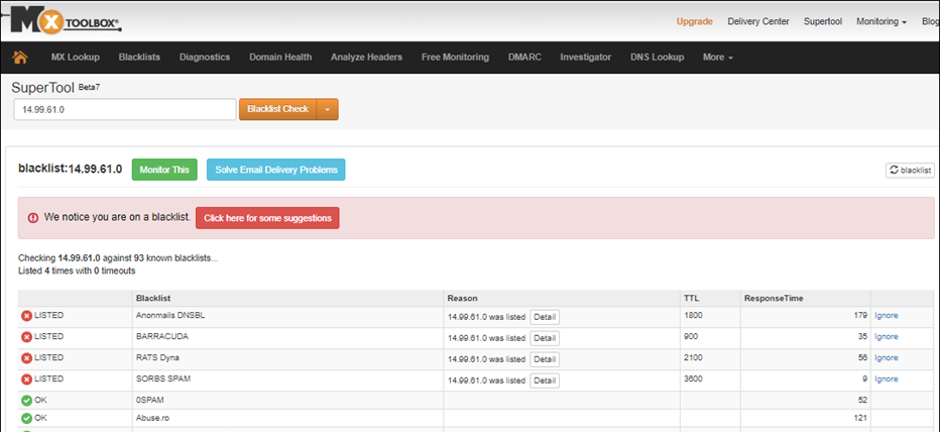
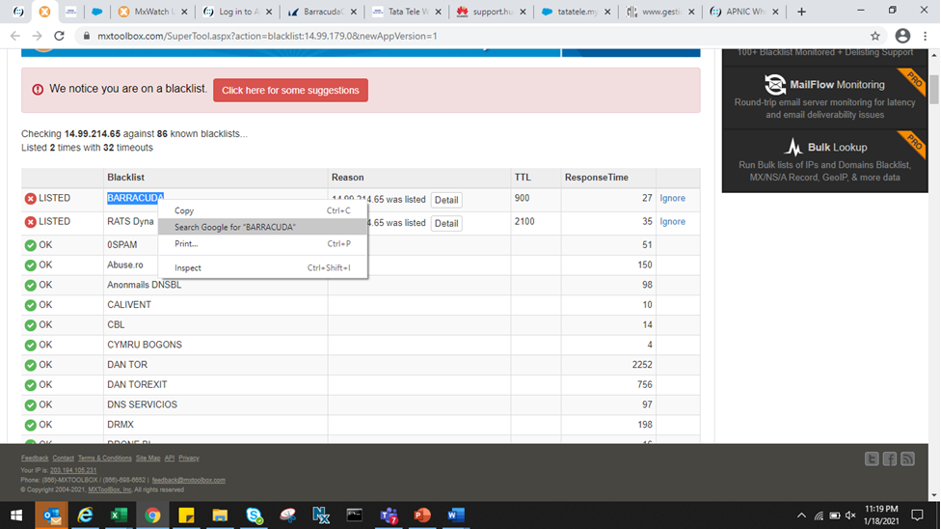
- Open the MXToolbox Blacklist Check, enter the IP and run the check. Note every list that shows the IP as Listed.
- Look up the IP in the Spamhaus IP and Domain Reputation Checker. Many email systems and website firewalls use Spamhaus, and it explains why an IP is listed.
- Optionally, check AbuseIPDB to see whether other networks have reported attacks or abuse from the IP.
3. Find and fix the cause #
Ask your IT team to check:
- Infected devices: run a full antivirus scan on every computer, server and laptop on the network. Infected devices are the most common cause of blocklisting and website blocks.
- Hacked email accounts: look for accounts sending unusual volumes of mail, reset their passwords and turn on multi-factor authentication.
- Mail server settings: make sure your mail server is not an open relay, and that SPF, DKIM and DMARC records are set up for your domain.
- Outgoing email traffic: only your mail server should send email directly to the internet (port 25). Block port 25 for all other devices on your firewall.
- Automated or bulk traffic: scripts, scrapers, bots or software that log in to a portal many times in a short period can trigger a website’s firewall. Stop or slow them down.
- Open services: devices exposed to the internet (open proxies, unsecured CCTV recorders, remote-desktop ports) are often taken over and used for attacks. Close or protect them.
4. Request removal or whitelisting #
4A. Email blocklists #
Submit a removal request on each list’s own website. The MXToolbox result links to the right page for each list.
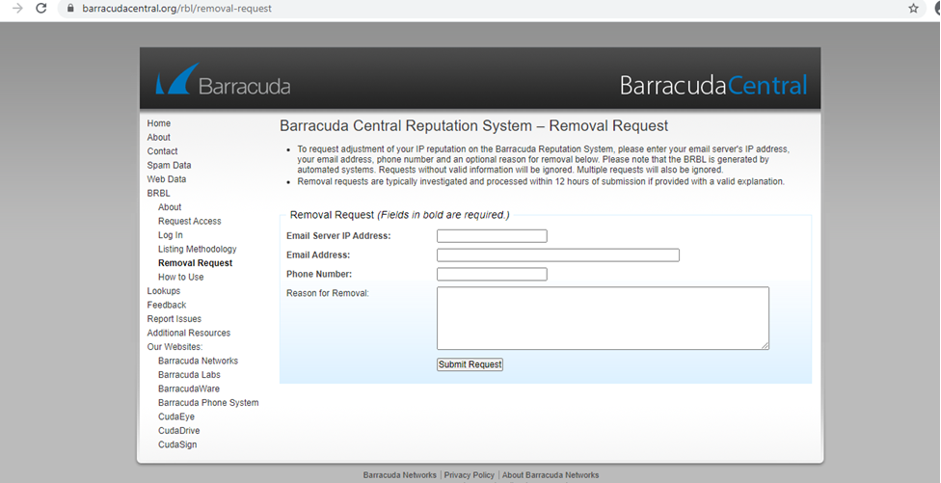
- Barracuda: open the Barracuda removal request form, enter the IP, your email address and a short explanation of what you fixed, then click Submit Request.
- Spamhaus: use the Spamhaus Reputation Checker. Where self-service removal is allowed, it lets you request it.
-
SpamRATS (including RATS-Dyna): these lists often flag IPs with no proper
reverse DNS (PTR) record. Because Cloudi owns your public IP, only Cloudi can set this record.
Raise a request with the IP and your mail server’s hostname
(for example,
mail.yourcompany.com). Once we confirm the record is in place, request removal on the SpamRATS website. - Other lists: follow the removal link shown for that list in the MXToolbox result.
4B. Government portals and other websites #
Only the website’s owner can unblock your IP — Cloudi cannot change another organisation’s firewall. Contact the website’s own helpdesk or grievance desk (usually listed under Contact Us or Help on the site) and ask them to whitelist your IP. Include:
- Your organisation’s name and the public IP to be whitelisted
- The page or service you are trying to reach
- A screenshot of the error, with the date and time
- Any reference or incident ID shown on the error page
- Confirmation that the site works from another network (for example, mobile data)
If the IP also appears on a public blocklist in step 2, clear that listing first (4A). Many sites use these lists, and the block may lift without further action.
4C. CAPTCHAs and “unusual traffic” warnings #
There is no form to submit for these. Once the cause in step 3 is fixed, the IP’s reputation usually recovers on its own within a few hours to a few days. If the warnings continue for more than a week after the network is clean, raise a request with Cloudi.
4D. Wrong country or city #
Websites work out your location from geolocation databases run by third parties. If the location is wrong, request a correction from the database provider. The most widely used is MaxMind’s correction form. Give the IP and your office’s real city. Changes can take a few weeks to reach every website.
5. Wait and recheck #
Each blocklist and website sets its own processing time — from a few minutes to a few days. Run the checks in step 2 again afterwards, and retry the website or email that was failing.
6. Need help from Cloudi? #
Submit a request if you need a reverse DNS (PTR) record, if the IP is listed again after removal, or if a website asks for proof that the IP belongs to you. Include your Circuit ID, the IP address, the blocklists or website involved, and screenshots of the error or bounce message.