
Problem #
Your device shows Wi-Fi or a cable connection, but websites and apps will not load. This guide helps you find out whether the cause is your device, your own network, or the Cloudi link, and what to send us if you need help.
- The red LOS (or equivalent alarm) light is on at the fiber/ONT device.
- A fiber or Ethernet cable is visibly damaged or cut.
- Power has returned after a cut but the link has not come back.
In these cases, skip the steps below and raise a request with Cloudi with your Circuit ID. If you have no internet at all, WhatsApp Cloudi Support 24×7 on +91 927 24 24 24 7, or submit a request from a phone using mobile data. You can also reach your Service Account Manager (SAM).
1. Check how many devices are affected #
Try a laptop, a phone and a tablet. Try both Wi-Fi and a wired connection if you can.
What it tells you: If only one device fails, the problem is likely that device. If all devices fail, continue to the next step.
2. Check lights and cables #
- Make sure all cables (fiber, Ethernet, power) are firmly plugged in and undamaged.
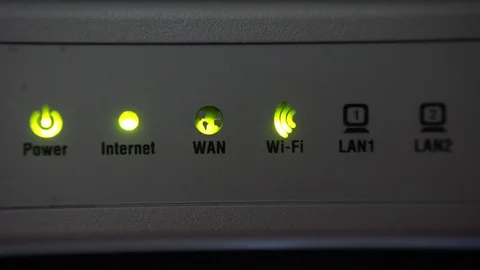
- Look at the lights on the modem/ONT and router. Light names differ by device, so check the label on the device or your installation sheet.
- Power: should be steady ON.
- Internet / WAN: should be ON or blinking, never red or off.
- Wi-Fi: should be ON if you use wireless.
What it tells you: A red or off Internet/WAN light usually means the problem is on the Cloudi link, not inside your office. Note the light status, as we will ask for it.
3. Restart your equipment in the right order #
- Switch off the modem/ONT and the router.
- Wait 30 seconds.
- Switch on the modem/ONT first and wait 2–3 minutes until its lights settle.
- Switch on the router and wait another 2 minutes.
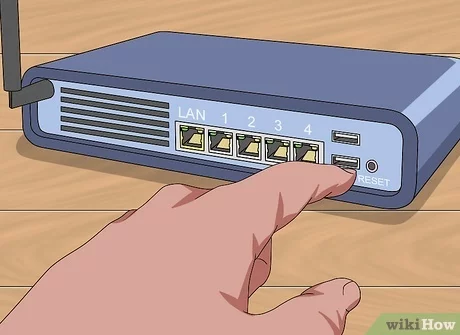
A power restart is safe on all equipment, including Cloudi-installed devices. Do not press the reset pinhole on any device — that erases its configuration.
What it tells you: Many temporary faults clear after a restart. If the internet is back, you are done.
4. Run a ping test #
A ping test shows whether your device can reach another computer on the internet.
Windows #
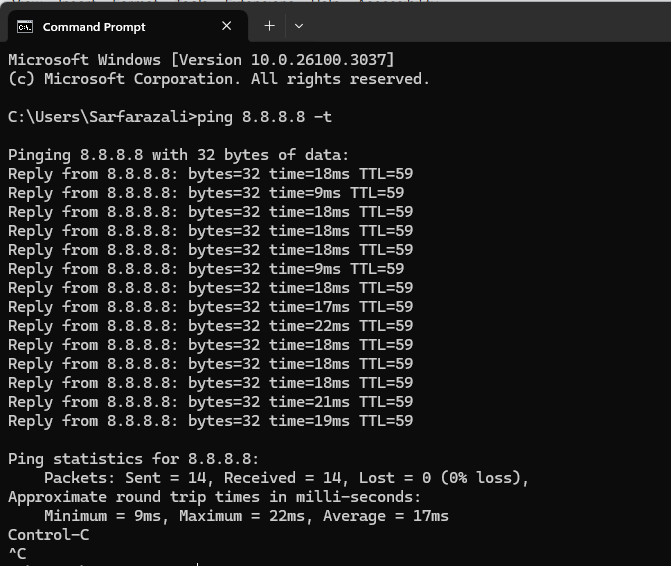
Open Command Prompt and run:
ping 8.8.8.8 -t-t keeps the test running. Press Ctrl + C to stop it.

Mac / Linux #
Open Terminal and run:
ping -c 10 8.8.8.8Then test a website name:
ping -c 10 google.comWithout -c 10, ping on Mac/Linux runs continuously until you press Ctrl + C.
How to read the results #
| Result | Meaning | Next step |
|---|---|---|
| Both 8.8.8.8 and google.com reply | Internet is working | See Slow Browsing Troubleshooting if pages are slow. |
| 8.8.8.8 replies, google.com fails | DNS problem | Go to Step 6. |
| Both fail | Connection problem | Go to Step 5. |
5. Find out where the connection breaks #
First ping your router (the default gateway).
- Windows: run
ipconfig, note the Default Gateway address, then ping that address. - Mac: run
netstat -nr | grep default, then ping that address. - Linux: run
ip route | grep default, then ping that address.
If the router does not reply, the problem is inside your network: check the cable or Wi-Fi connection, or restart the router again.
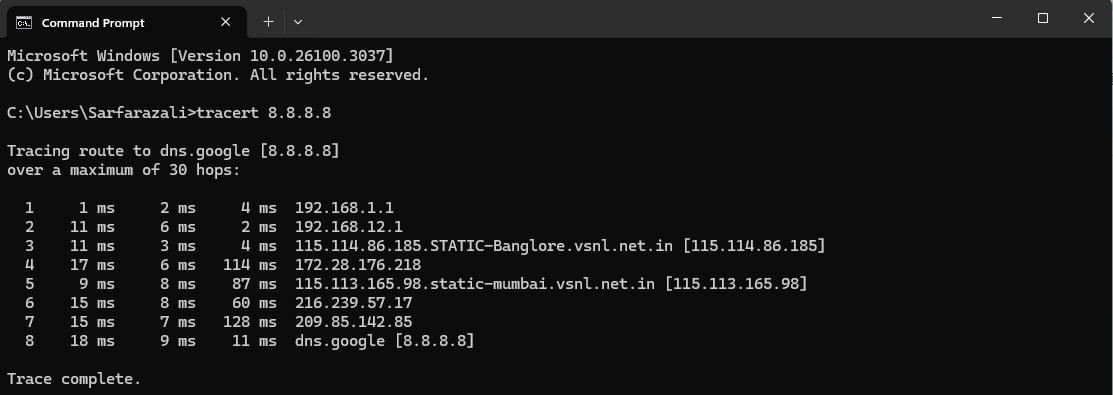
If the router replies but 8.8.8.8 does not, the problem is beyond your router. Run a traceroute and send us the result:
- Windows:
tracert -d 8.8.8.8 - Mac / Linux:
traceroute -n 8.8.8.8
Rows showing * * * or Request timed out in the middle of a traceroute
are usually normal — many routers are set not to answer these tests. What matters is where
the output stops for good and never reaches 8.8.8.8.

6. Reset DNS and IP settings on your computer #
- Run them only on your own computer (a laptop or desktop), not on servers or network devices.
ipconfig /releasedisconnects the computer from the network. If you are connected remotely (Remote Desktop, AnyDesk, VPN), you will lose the session. Run it only when you are sitting at the computer.- If the computer uses a fixed (static) IP address,
/releaseand/renewhave no effect — run onlyipconfig /flushdns.
Windows #
Open Command Prompt and run these commands one by one:
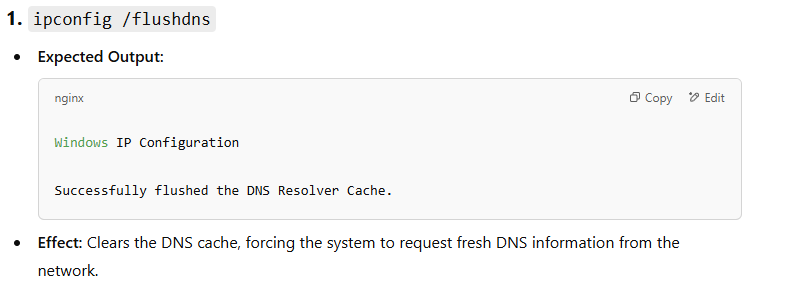
ipconfig /flushdns
ipconfig /release
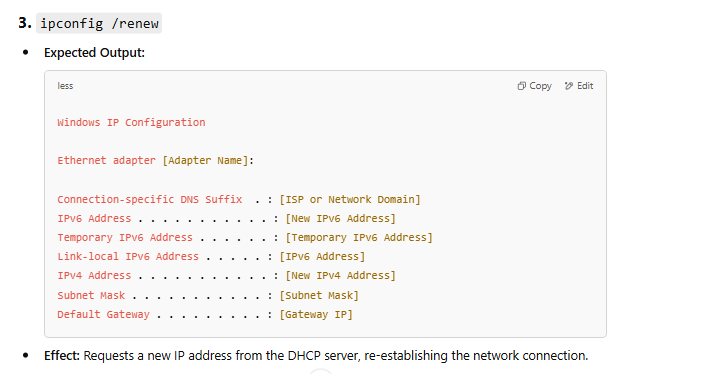
ipconfig /renew
ipconfig /flushdnsclears the DNS cache.ipconfig /releasedrops the current IP address. The connection drops briefly; this is expected.ipconfig /renewrequests a fresh IP address from the router.
Mac #
Open Terminal and run:
sudo dscacheutil -flushcache
sudo killall -HUP mDNSResponder
To refresh the IP address, turn Wi-Fi off and on again, or unplug and reconnect the Ethernet cable.
Linux #
Open Terminal and run:
resolvectl flush-caches
sudo systemctl restart NetworkManager
The exact commands depend on your distribution. If they do not work, restart the computer.
7. Check for planned maintenance or known outages #
Cloudi sends maintenance and outage notices by email to your registered contacts. See Service Notices and Planned Maintenance for how to check whether your site is affected.
8. Raise a request with Cloudi #
If the internet is still down, submit a request or email corp.helpdesk@cloudi-infra.com. Include:
- Your Circuit ID and site address
- When the problem started
- Which lights are on or off on the equipment
- Your ping and traceroute results (a screenshot is fine)
- Whether one device or all devices are affected
No internet at all? #
If you cannot reach the portal or email, WhatsApp Cloudi Support 24×7 on +91 927 24 24 24 7, or submit a request from a phone using mobile data. You can also reach your Service Account Manager (SAM).