
Why your speed test may look low #
A speed test measures the slowest part of the path between your device and the test server, and that is often not your Cloudi link. Wi-Fi, an older laptop, a busy office network or a distant test server can all make a healthy link look slow. Follow the steps below to measure the link itself.
Why Wi-Fi tests don’t show your real bandwidth #
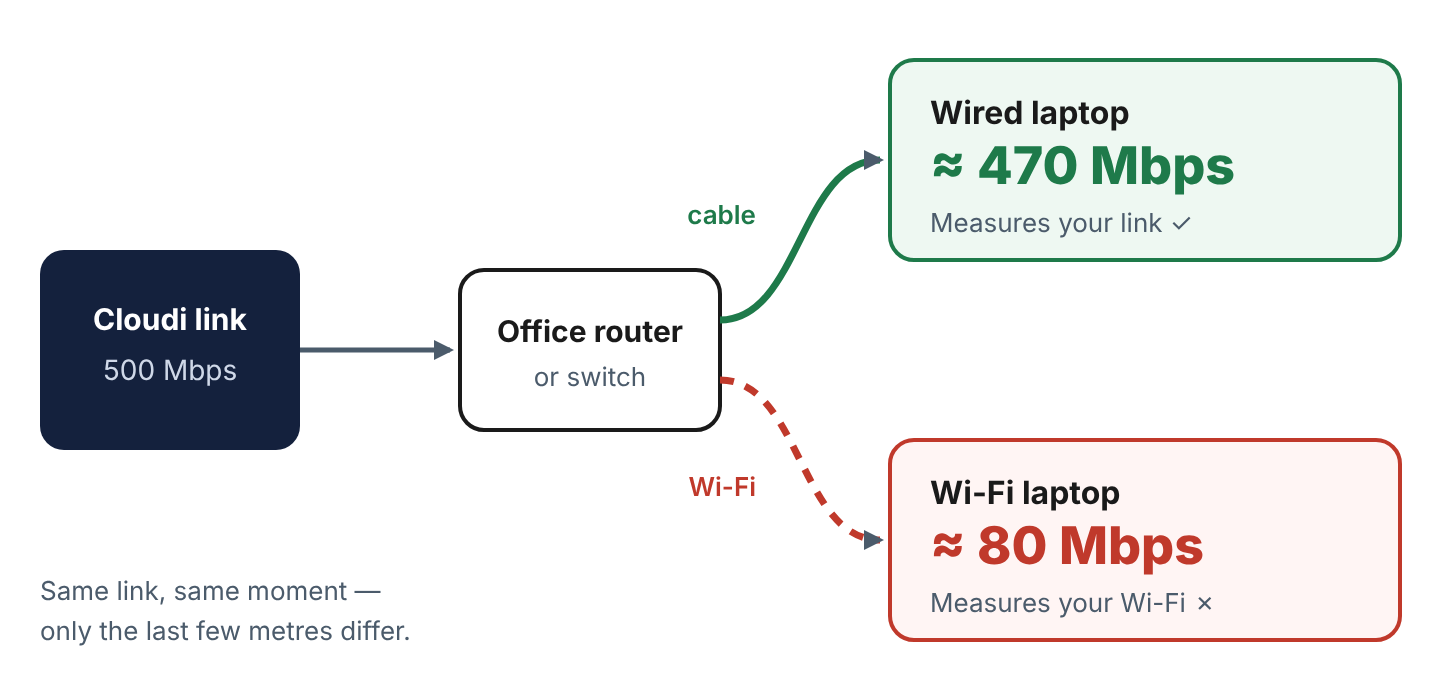
A speed test over Wi-Fi measures your Wi-Fi, not your Cloudi link. Wi-Fi speed drops with distance, walls, interference and the number of people connected, and many devices cannot go above 100–300 Mbps over Wi-Fi even in ideal conditions.
For example, on a 500 Mbps ILL, a laptop on Wi-Fi in a busy office may show 80 Mbps while the link itself is delivering the full 500 Mbps. Always test over a wired connection before reporting a speed problem.
Before you test #
- Use a cable: connect a computer with an Ethernet cable directly to your main switch or router, as close as possible to the Cloudi equipment.
- Check the network port speed: many older laptops, USB adapters and cables are limited to 100 Mbps. For links above 100 Mbps, use a computer with a gigabit (1 Gbps) port and a Cat5e or Cat6 cable. On Windows, check under Settings > Network & Internet > Ethernet (Link speed).
- Remember your link is shared: everyone in the office shares the bandwidth. If possible, test when the office is quiet, or note that others were working during the test.
- Turn off VPN and proxy: a VPN sends traffic through another server and will lower the result.
- Pause heavy apps: close downloads, cloud backups, file sync (OneDrive, Google Drive) and streaming on the test computer.
Run the test #
1. Open the speed test #
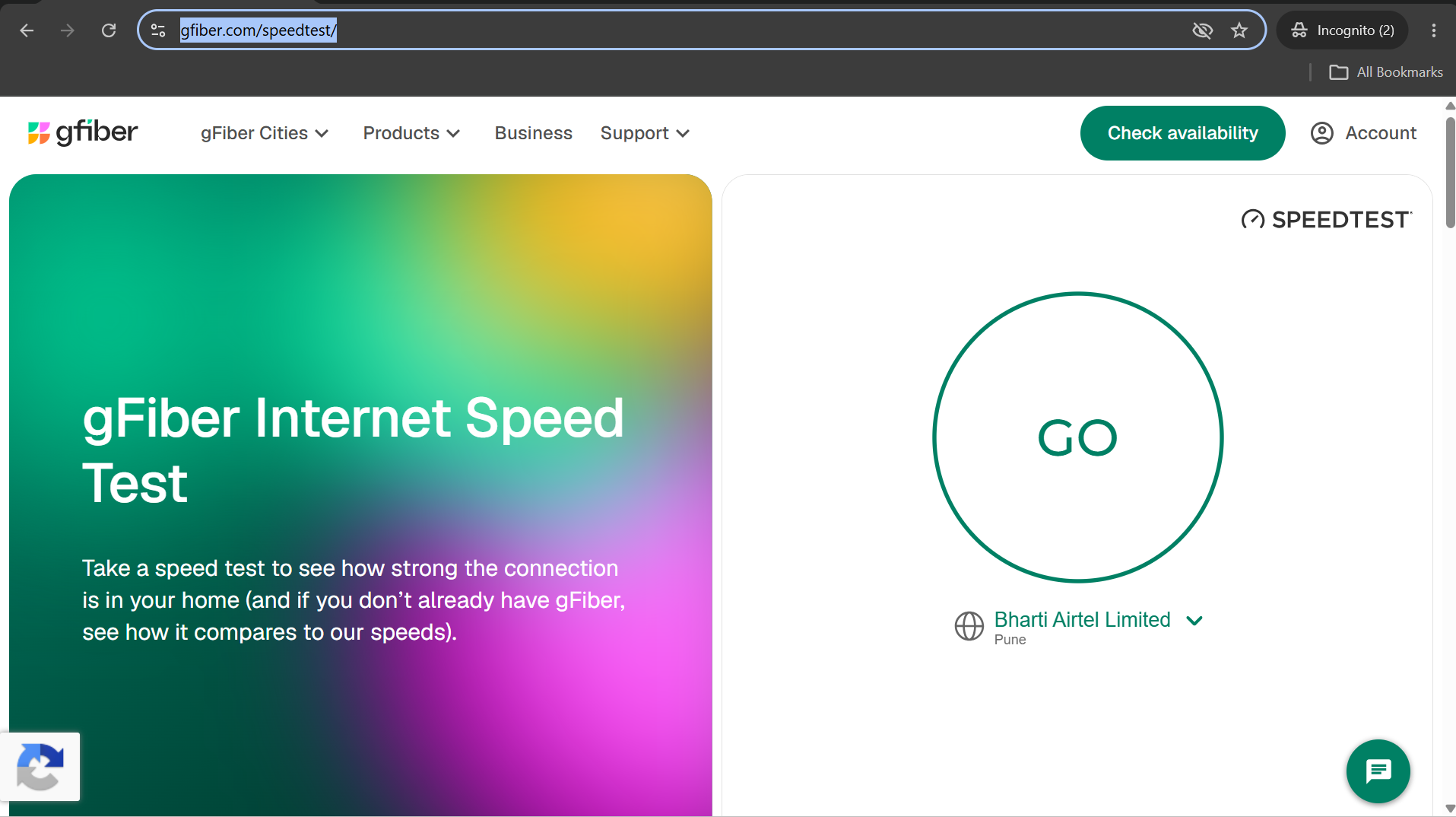
On the wired computer, open gfiber.com/speedtest in a browser.
2. Choose the right server #
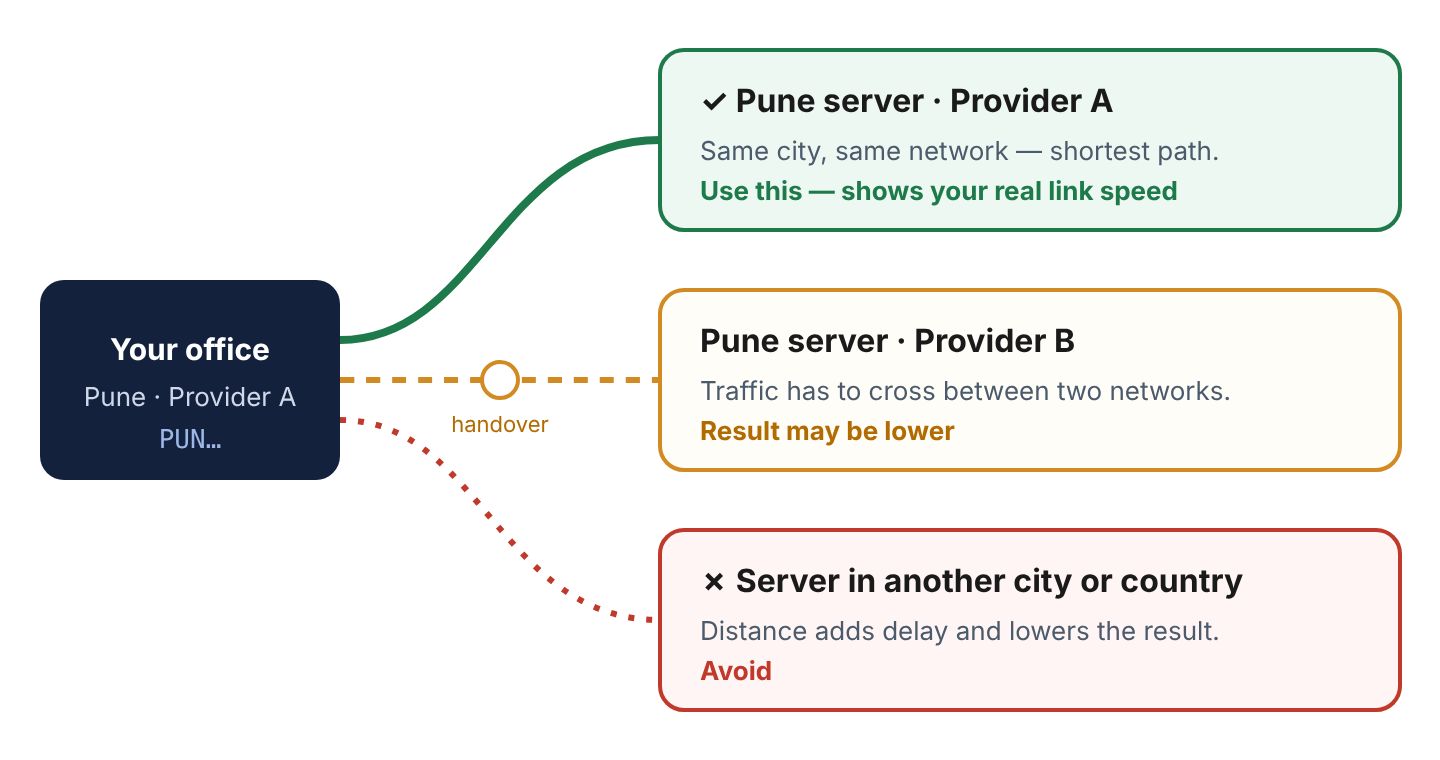
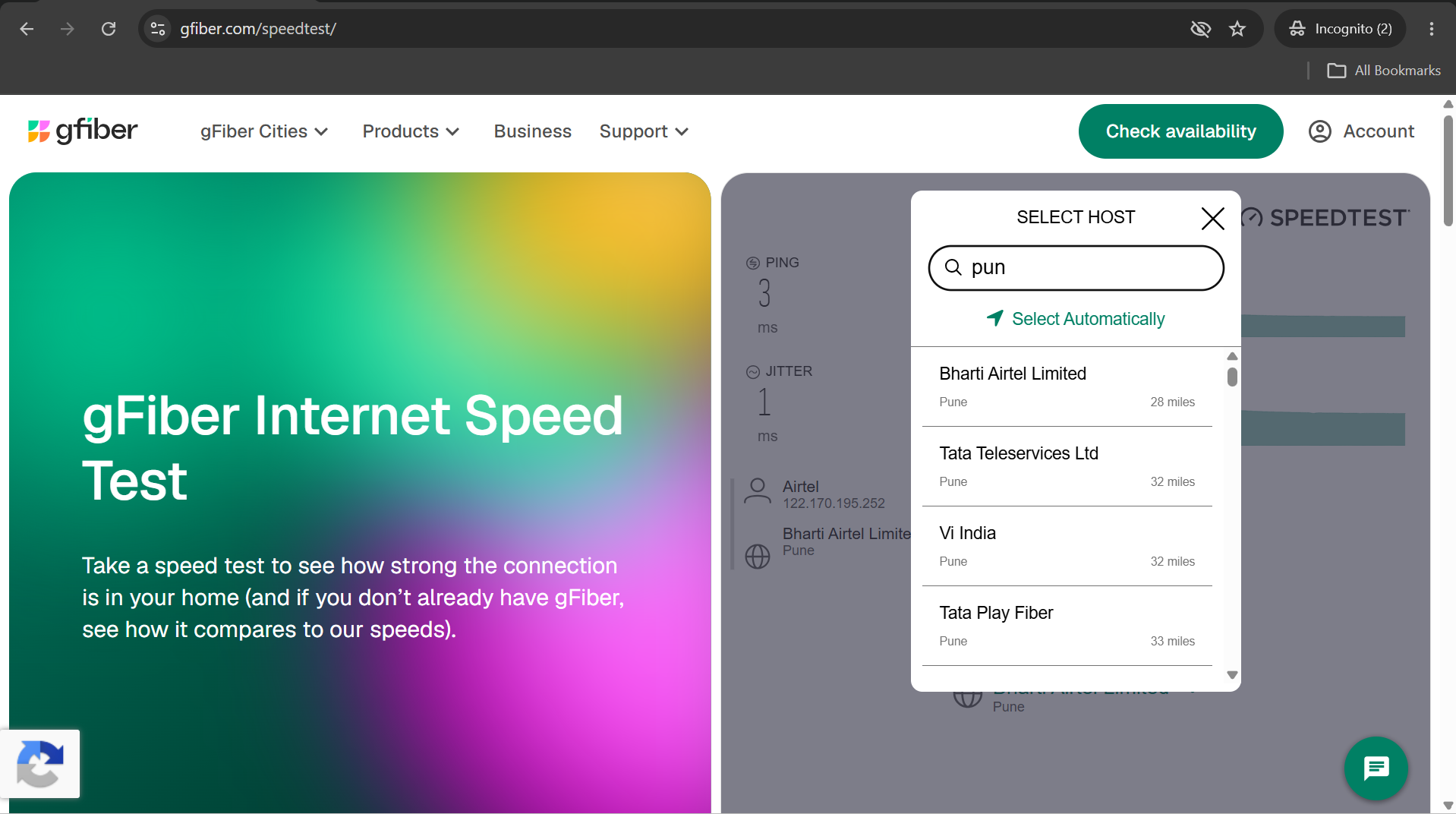
Open the server list and choose a server that matches both of these:
- Same city as your site. The first three letters of your Circuit ID show the city, for example
PUNfor Pune. - Same network provider as your link. If you are not sure which provider to choose, ask your Cloudi Service Account Manager (SAM).
A server in another city, or on another provider’s network, adds distance and extra handovers between networks, so the result will be lower than what your link actually delivers. If no server matches both, choose the nearest city on the same provider.
3. Start the test and repeat it #
Start the test and wait for it to finish. Run it three – four times, a few minutes apart, and take a screenshot of each result. Make sure each screenshot shows the server you used.
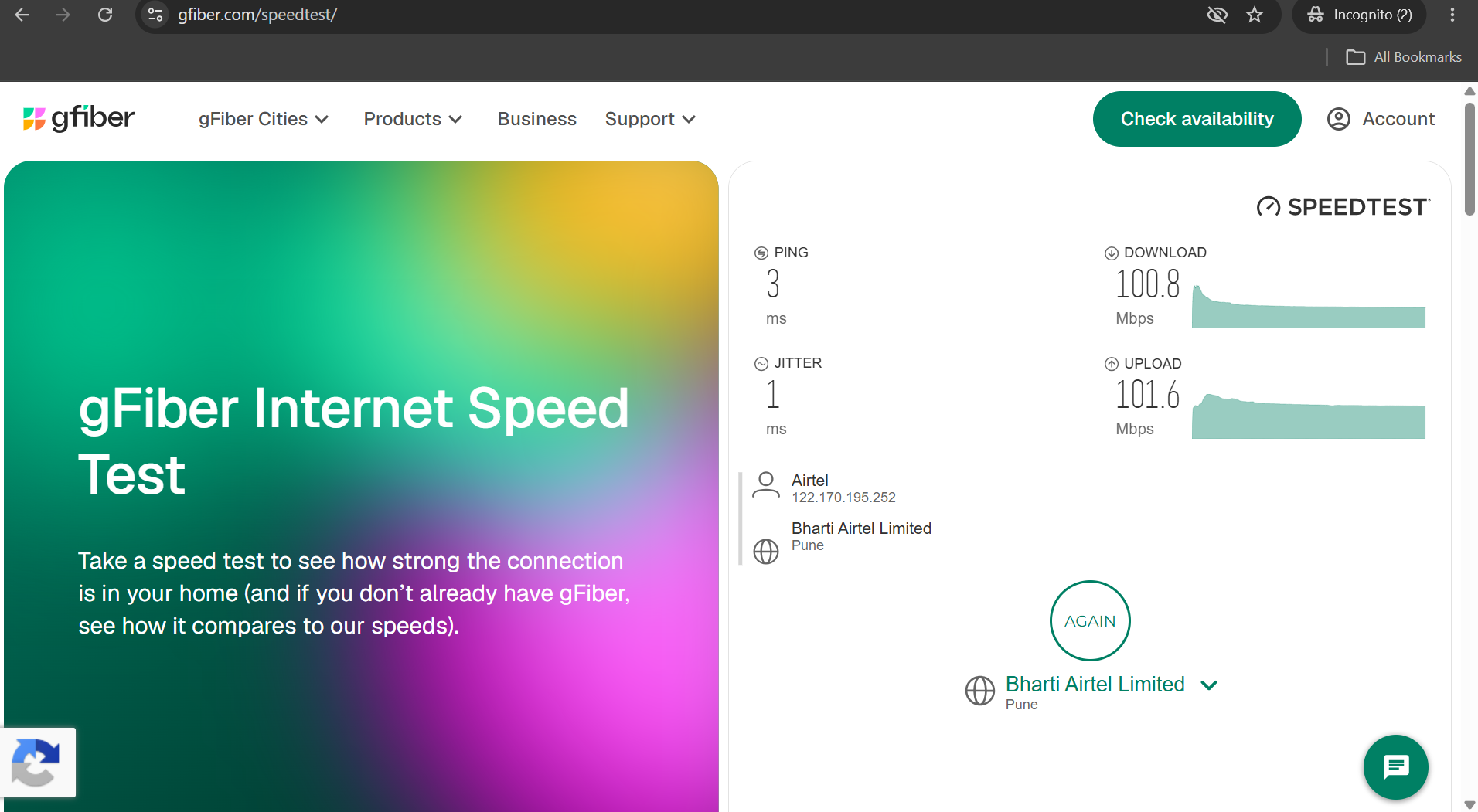
Reading the result #
| Value | What it means |
|---|---|
| Download / Upload | Speed in Mbps. On ILL, download and upload should both be close to your subscribed bandwidth. |
| Ping | Delay to the test server in milliseconds. To a server in the same city it is usually under 20 ms. |
- ILL: results around 90–95% of your subscribed bandwidth are normal. Part of the link capacity is used by the network protocols themselves, so a test never shows 100%.
- Broadband: speeds are shared and offered “up to” the plan speed, so results can vary more, especially in the evening.
If the result is still low #
If wired tests, run as described above, are consistently well below your subscribed bandwidth, raise a request. Include:
- Your Circuit ID and subscribed bandwidth
- Screenshots of all three – four test results, showing the server used
- Confirmation that the test was wired, and the computer’s link speed
- The time of the tests and whether the office was busy
Our team can run tests from the Cloudi side of the link to confirm the bandwidth being delivered.